One link per screen — copy it, and it's ready for any broadcast software or browser.
Steps
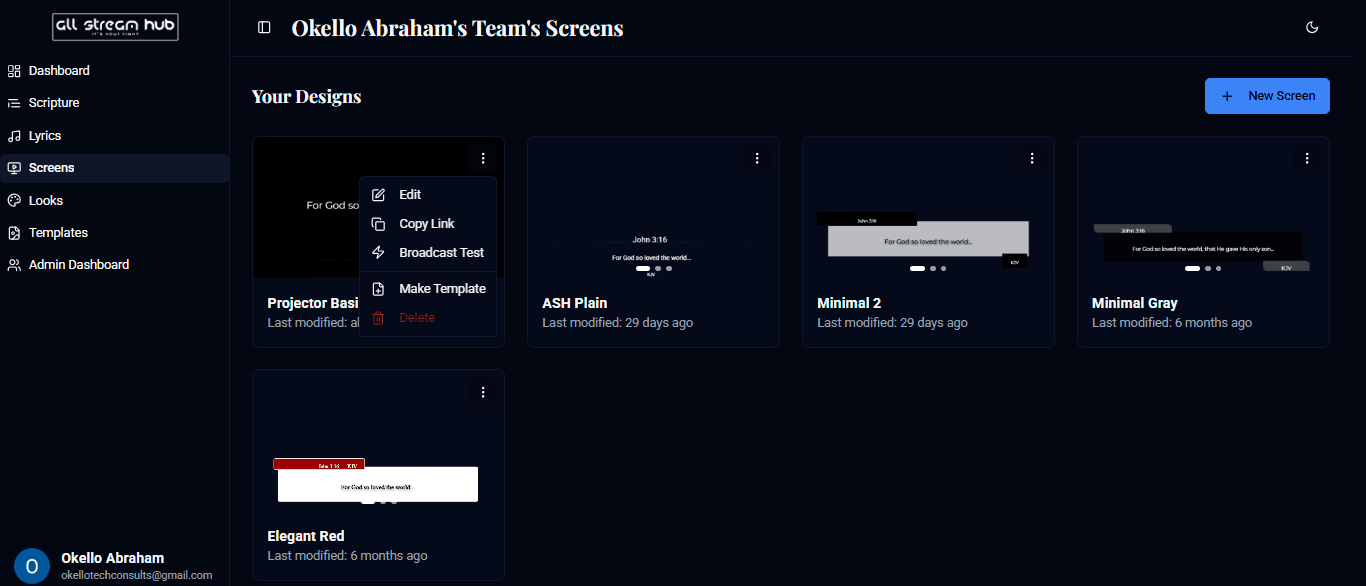
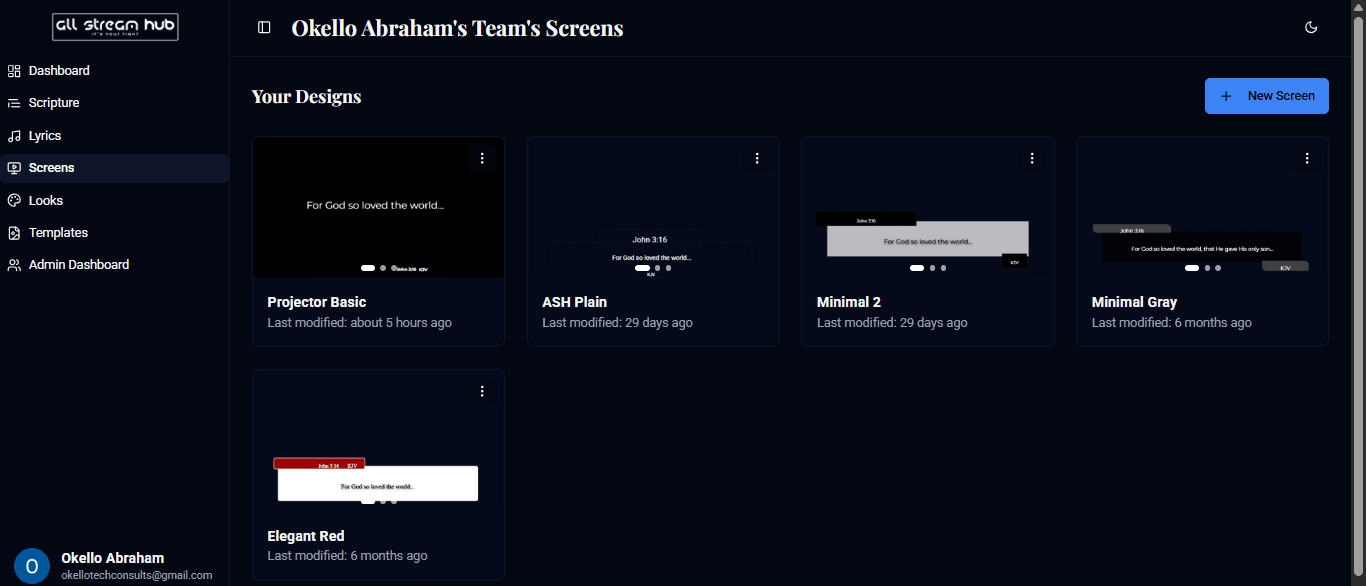
1Open Screens and find the design you want to go live with.
2Select the ⋮ menu on its card.
3Select Copy Link — a confirmation toast lets you know it's on your clipboard.
4That link is a transparent, real-time web page. Paste it into any browser to preview it, or into your broadcast software's browser source when you're ready to go live.
Screenshots
The three-dot menu on a screen card, openThe confirmation toast after copying a screen link
Transcript
Every screen you build gets its own unique link. Open the three-dot menu on a screen's card and select Copy Link — you'll see a quick confirmation that it's on your clipboard. That link is just a transparent web page, so you can paste it into any browser to check it, and it's the same link your broadcast software will use later to bring the overlay into your stream.
Ready to Go Live?
Add professional scripture, lyrics, and lower-thirds to your livestream with AllStreamHub — free to start.