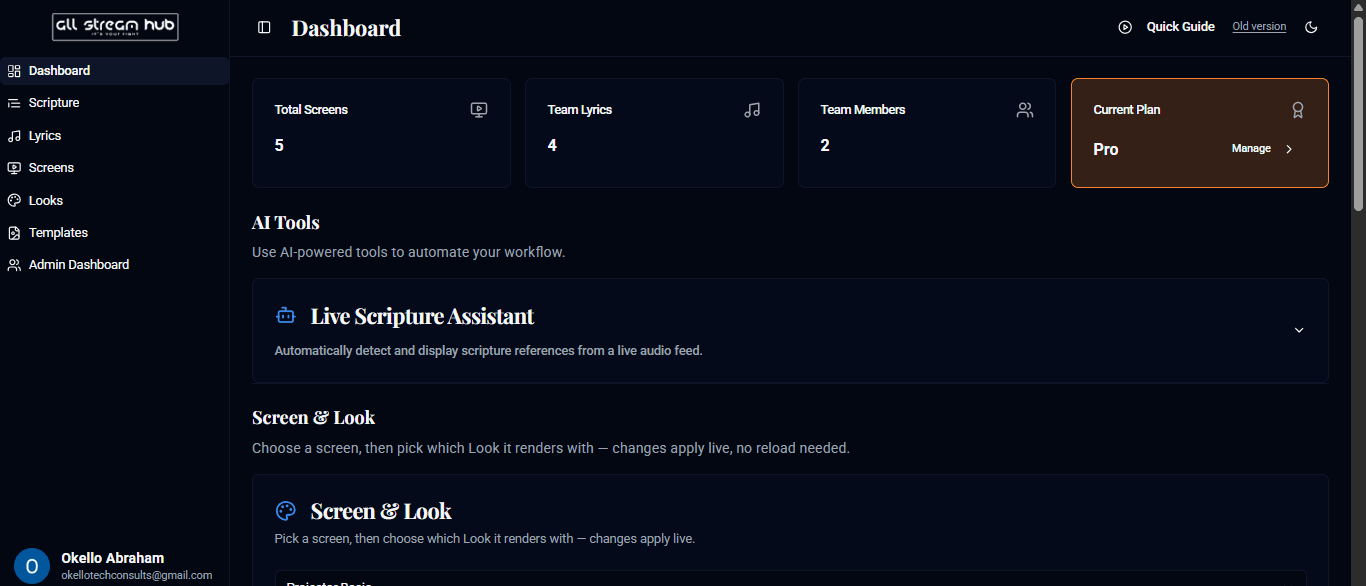
Your mission control — usage at a glance, AI tools, and quick access to every screen.
Steps
1After logging in you land on the Dashboard.
2The top row shows your team at a glance: Total Screens, Team Lyrics, Team Members, and your Current Plan.
3The AI Tools section includes the Live Scripture Assistant, which listens to a live audio feed and detects scripture references automatically.
4Further down, Screen & Look lets you pick a screen and swap which visual "Look" it renders with — changes apply live, no reload needed.
5Scrolling further reveals Content Management — the same Scripture, Lyrics, and Dynamic Content controls covered in the tutorials below, all in one place.
Screenshots
The dashboard, showing usage stats and AI Tools
Transcript
The dashboard is where every session starts. Right at the top you can see how many screens you've built, how many songs are in your team's library, how many teammates you have, and what plan you're on. Below that sits the AI Tools section — the Live Scripture Assistant can listen to a live audio feed and surface scripture references on its own. And further down, Content Management brings your Scripture, Lyrics, and Dynamic Content controls together in one place, so you rarely need to leave this page during a live service.
Ready to Go Live?
Add professional scripture, lyrics, and lower-thirds to your livestream with AllStreamHub — free to start.