Every design you build lives here — create, edit, preview, or retire a screen.
Steps
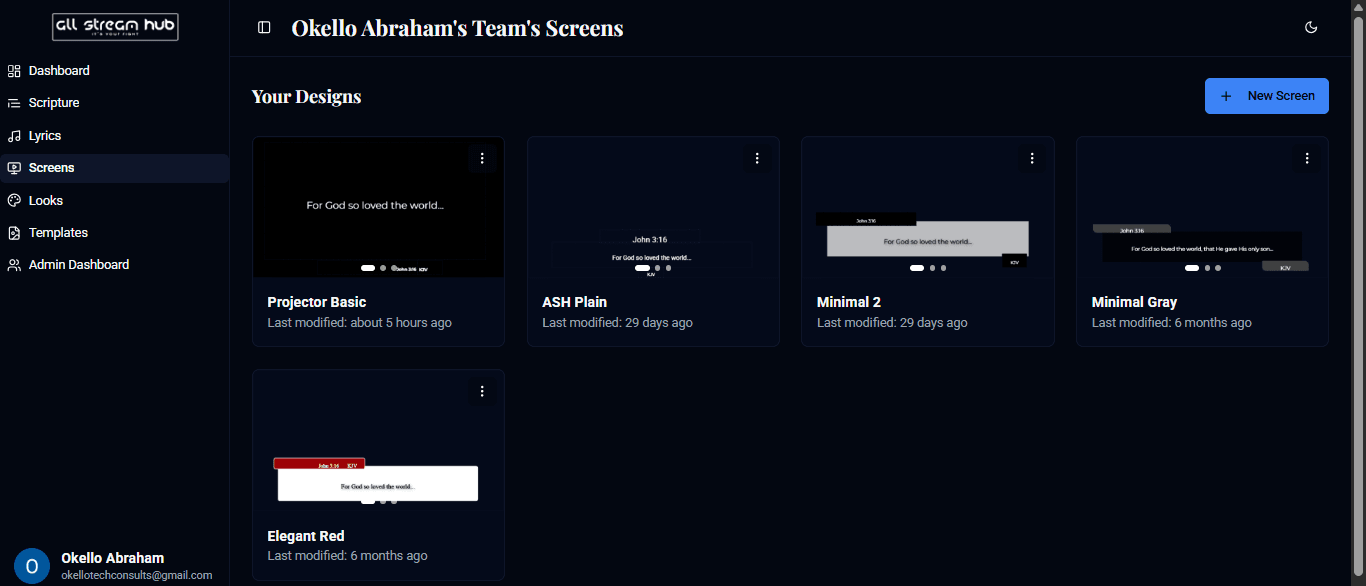
1Open Screens in the sidebar to see every design your team has built.
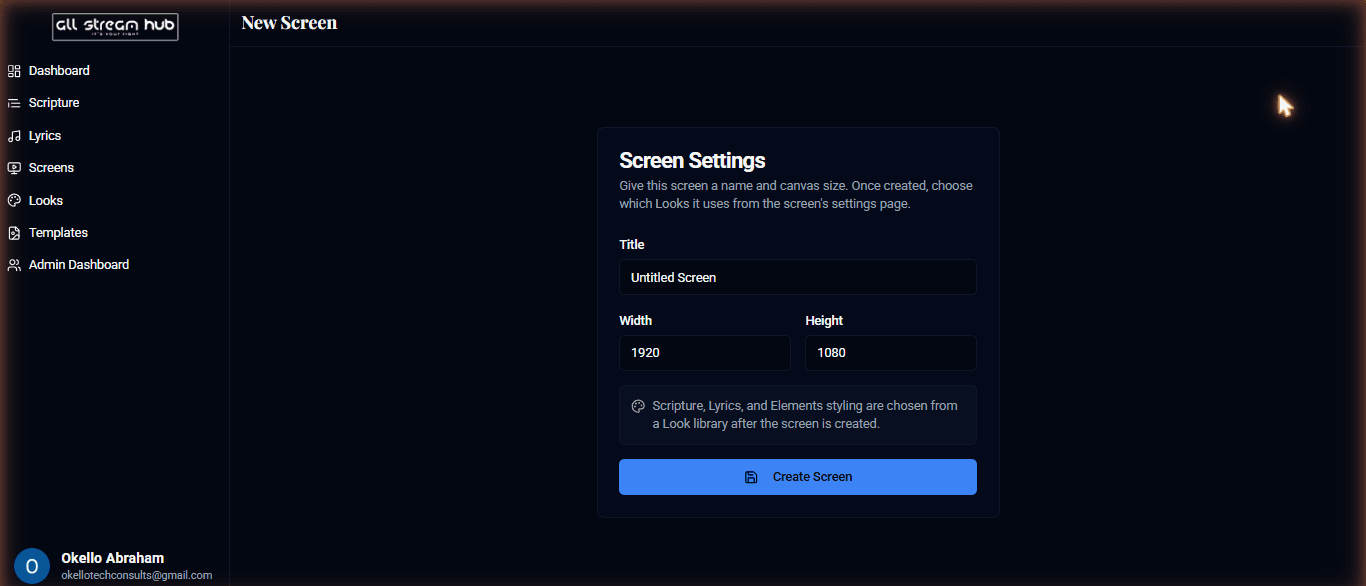
2Select + New Screen, give it a title, and set its canvas Width and Height to match your broadcast resolution (e.g. 1920 × 1080).
3Select Create Screen to open it in the Screen Designer.
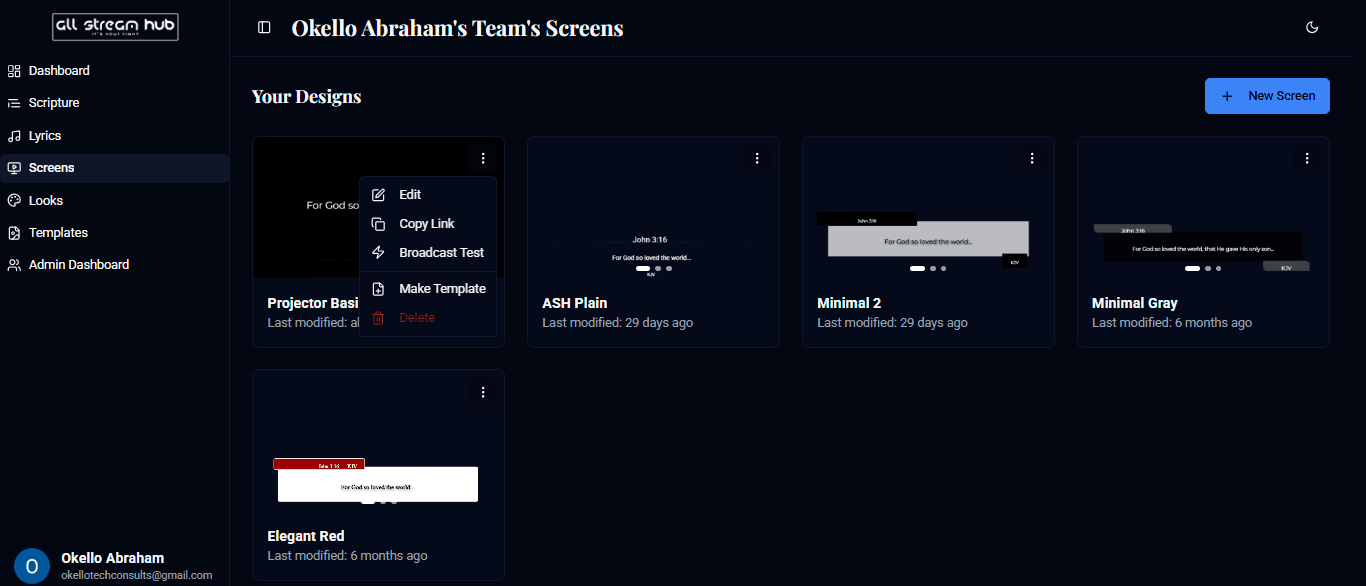
4From any screen card, open the ⋮ menu for quick actions: Edit, Copy Link, Broadcast Test, Make Template, or Delete.
Screenshots
The Screens page listing every design the team has builtThe New Screen dialog with title, width, and heightThe three-dot menu on a screen card, open
Transcript
The Screens page is your library of every overlay design your team owns. To start a fresh one, click New Screen, give it a name, and set the canvas size to match your broadcast — 1920 by 1080 is standard for full HD. Once it's created you're dropped straight into the designer. Back on the list, the three-dot menu on any card gives you fast access to editing, copying its link, running a broadcast test, turning it into a reusable template, or deleting it.
Ready to Go Live?
Add professional scripture, lyrics, and lower-thirds to your livestream with AllStreamHub — free to start.