Build the look — background, live scripture and lyrics layers, and custom elements.
Steps
1Open a screen from the Screens page to enter the Screen Designer.
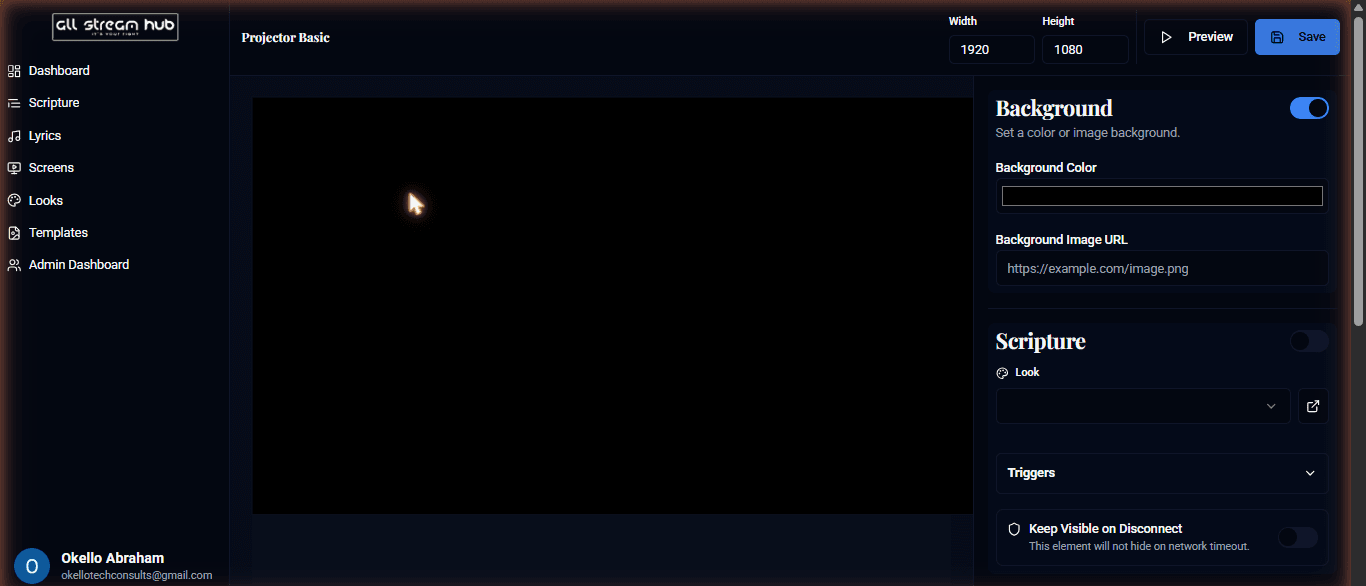
2Set exact Width and Height at the top, and preview or save from the same bar.
3Toggle Background on and set a solid color or an image URL.
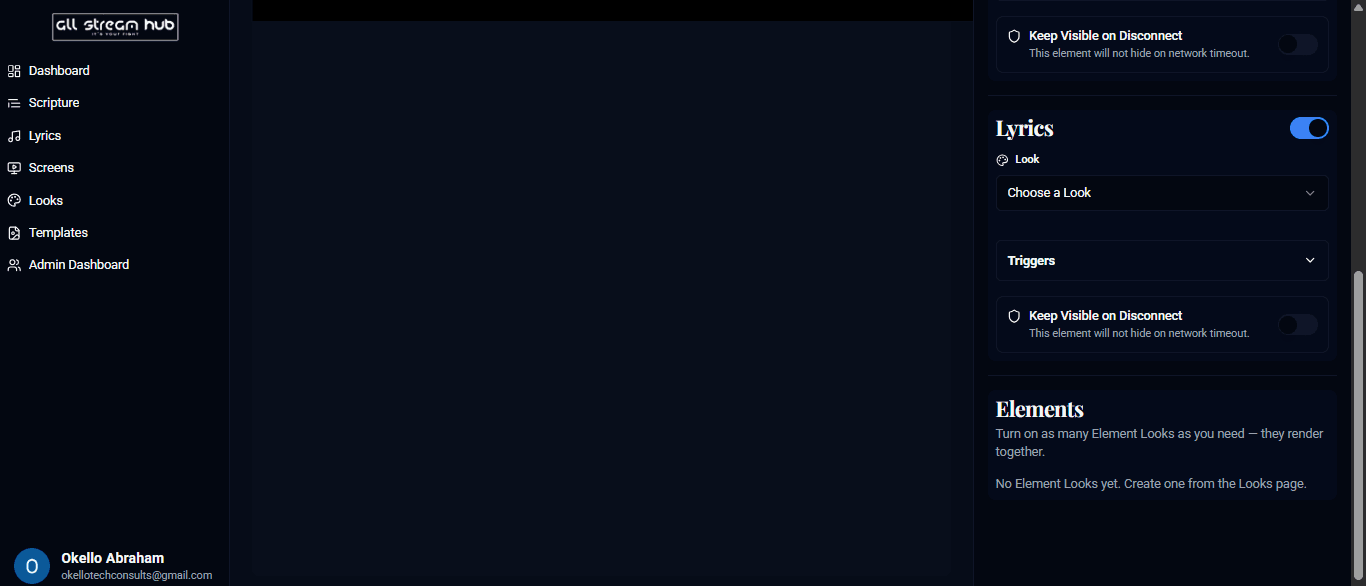
4Toggle Scripture and Lyrics layers independently, each with its own Look, trigger rules, and a Keep Visible on Disconnect option.
5The Elements section lets you turn on any number of Element Looks — built separately on the Looks page — and they all render together.
Screenshots
The Screen Designer canvasThe Screen Designer layer panel
Transcript
The Screen Designer is where a screen actually gets its look. At the top you can fine-tune its pixel dimensions and jump straight to a live preview. The right-hand panel stacks everything you can layer onto the canvas: a background color or image, a Scripture layer, a Lyrics layer, and any number of custom Elements — each one togglable independently and each pulling its styling from a Look you've built on the Looks page. Turn on only what a given screen needs, and they'll all render together in real time.
Ready to Go Live?
Add professional scripture, lyrics, and lower-thirds to your livestream with AllStreamHub — free to start.